
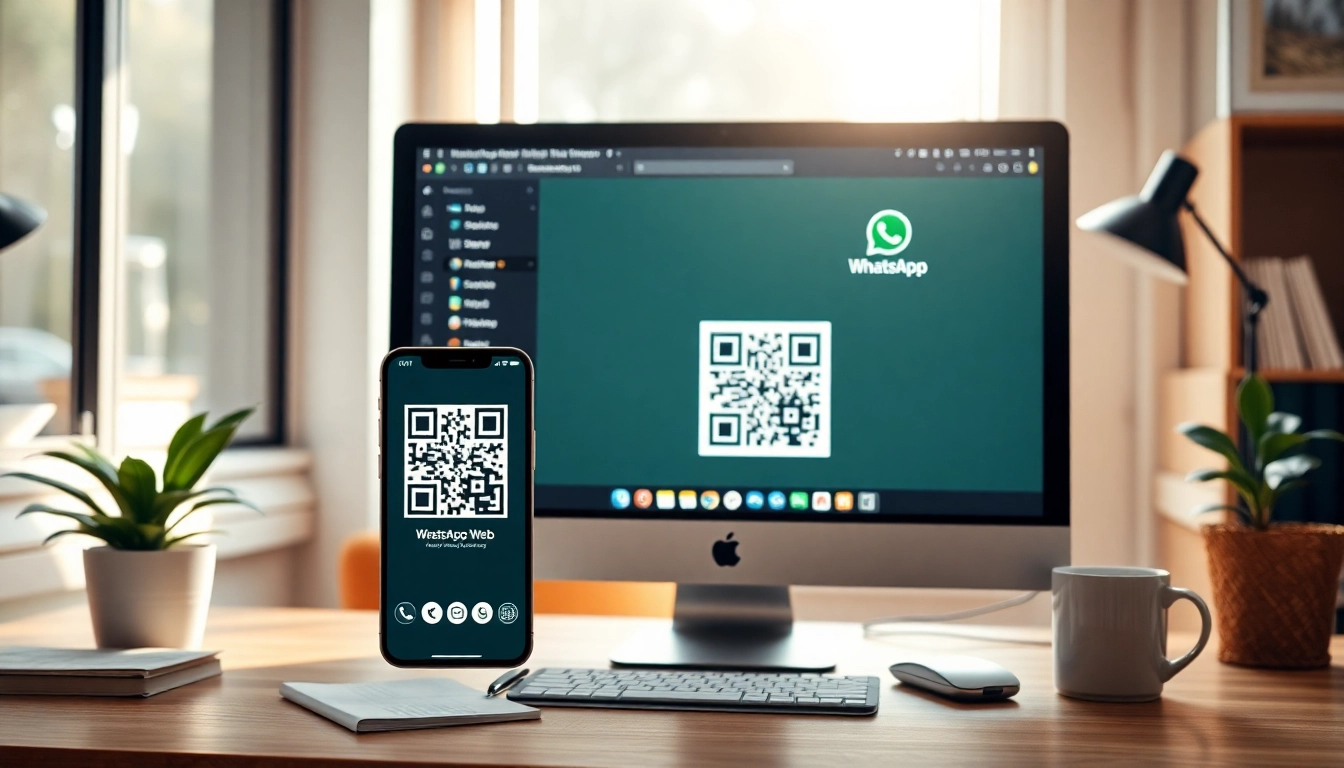
Introduction to WhatsApp Web
In today's rapidly evolving digital landscape, staying connected has become more important than ever. WhatsApp Web offers a seamless extension of the popular instant messaging platform, allowing users to connect with friends, family, and colleagues from the comfort of their desktop or laptop. By bridging the gap between mobile and desktop communications, WhatsApp Web enhances the way we interact, making it easier to manage conversations and share information. This article explores the core features, benefits, and setup process of WhatsApp Web, along with tips for efficient usage. With its emphasis on privacy and real-time synchronization, WhatsApp Web not only meets the demands of modern communication but also prioritizes user security.
What is WhatsApp Web?
WhatsApp Web is the browser-based version of WhatsApp that allows users to send and receive messages on their computers. It operates in synchronization with the mobile app, meaning that all your messages, photos, and videos can be accessed on both devices as long as the mobile device is connected to the internet. This functionality is particularly useful for individuals who prefer the convenience of typing on a keyboard while working or studying on their computers.
Benefits of Using WhatsApp Web
WhatsApp Web comes with several advantages that streamline communication:
- Convenience: Easily switch between your phone and computer without missing any messages.
- Enhanced Typing Experience: The larger keyboard and screen allow for faster typing and better readability.
- Multimedia Sharing: Quickly send and receive files, photos, and videos with drag-and-drop functionality.
- Real-Time Notifications: Stay updated with instant notifications on your desktop.
How it Enhances Your Communication Experience
By utilizing WhatsApp Web, users can manage conversations more effectively, whether in a professional context or personal interactions. The ability to organize chats, share files, and conduct multiple conversations simultaneously enhances productivity. Moreover, with features like video calls integrated into the platform, WhatsApp Web ensures a holistic communication experience akin to face-to-face interactions.
Setting Up WhatsApp Web
Step-by-Step Guide to Open WhatsApp Web
Setting up WhatsApp Web is a straightforward process:
- Open your preferred web browser.
- Navigate to web.whatsapp.com.
- You'll see a QR code displayed on the screen.
Linking Your Device
Once you've opened WhatsApp Web, the next step involves linking it with your mobile device:
- Open the WhatsApp application on your smartphone.
- Tap on the three dots (or settings) in the top right corner.
- Select "Linked Devices."
- Choose "Link a Device," and scan the QR code displayed on your computer screen.
Now your devices are linked, and you can start chatting from your desktop!
Troubleshooting Common Issues
In case you encounter any issues while using WhatsApp Web, consider the following troubleshooting steps:
- Check Your Internet Connection: Both your phone and computer need to be online for WhatsApp Web to function.
- Refresh the Page: Sometimes, simply refreshing the page can resolve temporary glitches.
- Re-link the Device: If problems persist, un-link the device on your phone and re-link it again.
Core Features of WhatsApp Web
Real-Time Message Synchronization
A standout feature of WhatsApp Web is its real-time message synchronization. Every message sent or received on your mobile device appears instantly on your computer. This ensures you never miss important conversations and can respond swiftly from your desktop.
End-to-End Encryption Explained
Privacy is a major concern for many users, and WhatsApp Web upholds robust security measures:
- End-to-End Encryption: Only you and the recipient can read the messages exchanged, ensuring they remain private.
- Data Security: WhatsApp does not store your messages or share them with third parties, safeguarding your communications.
- Continuous Monitoring: The platform’s security systems actively monitor for suspicious activity, adding an extra layer of protection.
High-Quality Video Calls and Multimedia Sharing
WhatsApp Web supports high-quality video calls, making it easier to connect with colleagues or loved ones remotely. Additionally, users can share images, documents, and videos effortlessly, enhancing the overall interaction quality.
Managing Conversations Efficiently
Organizing Chats and Threads
Efficient management of conversations is essential in a busy digital environment. WhatsApp Web allows you to:
- Star important messages: Mark critical messages for easy access later.
- Create groups: Organize chats by creating groups for specific topics or teams.
- Search function: Easily find previous messages or files by using the search bar.
Using WhatsApp Web for Work
Many professionals use WhatsApp Web to manage work-related communications effectively. Here are practical ways to leverage it:
- Collaborate in real-time: Share documents and media instantly with team members.
- Schedule meetings: Use the chat to arrange virtual meetings or project updates.
- Integrate other tools: Combine WhatsApp Web with productivity apps for seamless workflow.
Best Practices for Collaboration
To enhance collaboration underpinned by WhatsApp Web, consider these best practices:
- Use clear communication: Always strive for clarity in messages to avoid misunderstandings.
- Respect others’ time: Be mindful while sending messages during off-hours or holidays.
- Utilize status updates: Make use of status features to keep your team informed about your availability.
FAQs and Troubleshooting
Common Questions About WhatsApp Web
Here are some frequently asked questions regarding WhatsApp Web:
- Can I use WhatsApp Web without my phone? No, your phone must remain connected to the internet for WhatsApp Web to function.
- Is WhatsApp Web safe? Yes, it features strong encryption and privacy practices to protect your messages.
- What browsers support WhatsApp Web? WhatsApp Web is compatible with all modern browsers, including Chrome, Firefox, and Safari.
Installation Issues on Mobile Devices
If you face issues installing WhatsApp on your mobile device, consider these tips:
- Check device compatibility: Ensure your device meets the minimum system requirements.
- Clear storage space: Make sure you have enough space on your device.
- Restart your device: This can resolve many common installation issues.
Privacy and Security Concerns Addressed
Users often wonder about their privacy when using instant messaging applications. WhatsApp Web’s end-to-end encryption means your messages remain confidential. Moreover, the platform regularly updates its security measures, ensuring your data is always protected.